
Create a Ranking or Award
Introduction:
Videos are best viewed full screen at 1080p resolution.
Video Duration: 04:54
Step by Step Instructions:
Step 1: From the top navigation, click on the Content drop-down and then Rankings and Awards.
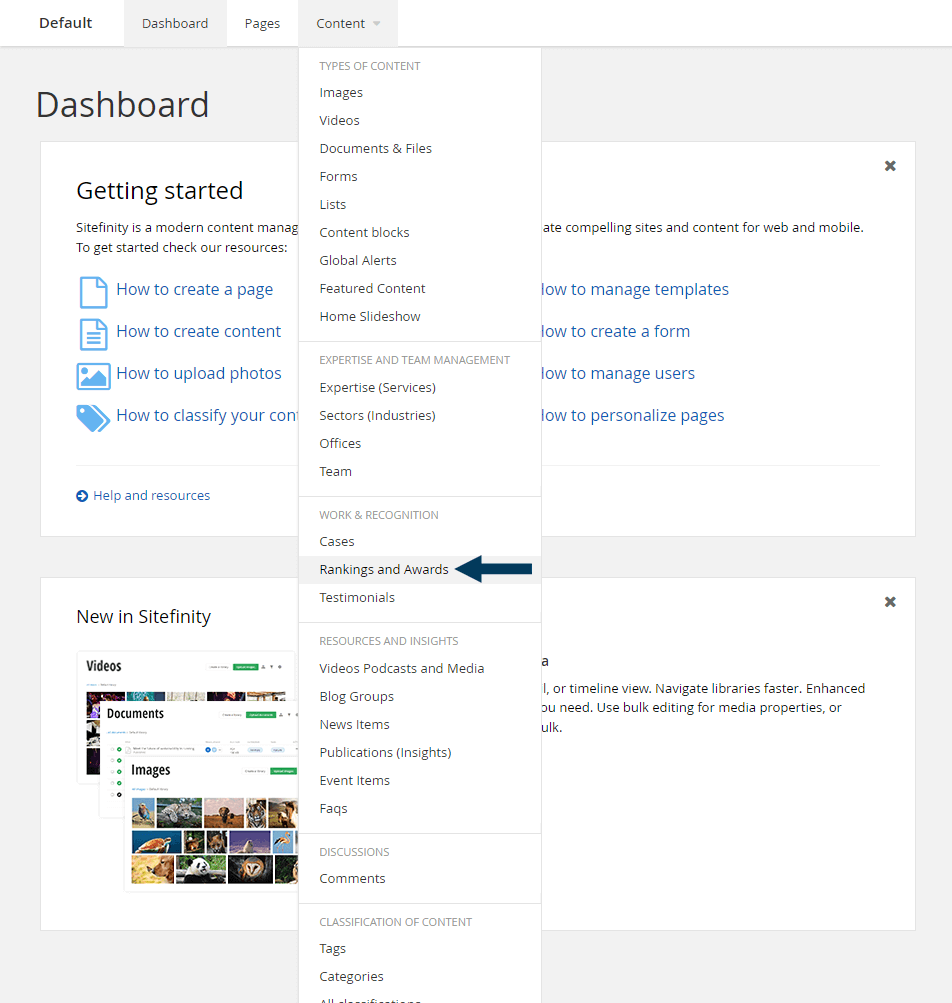
This will bring up the listing page that shows all items.
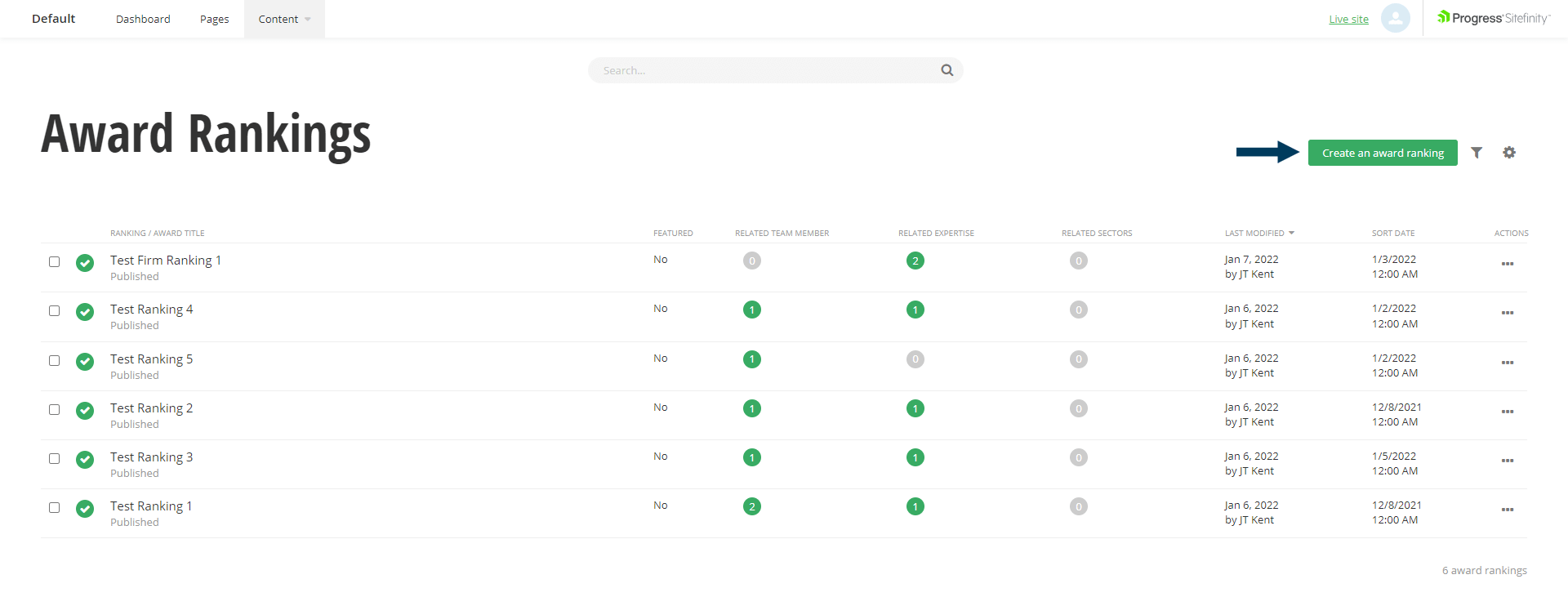
Step 2: To create an Award item, click on the Create an award ranking button. The Create dialog will appear.
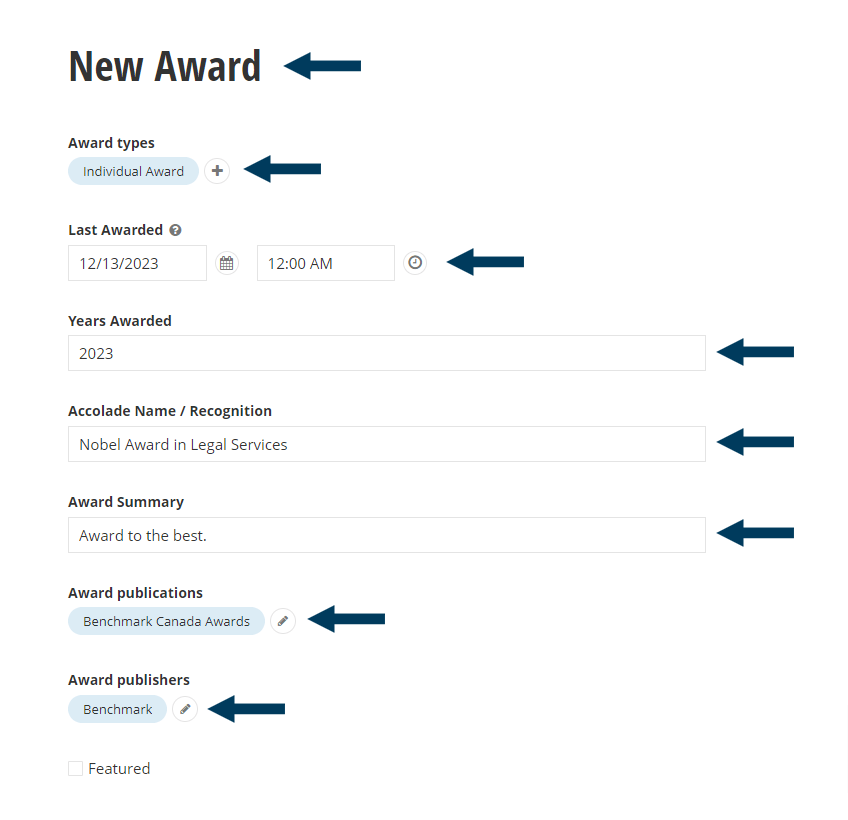
Step 3a: Fill out the main fields.
First, Title the Award. For Award Items the Award types (Classification Field) helps to further classify the Award Items for filtering. You can also select the date the award was awarded (optional), as well as fill in all the years the award was earned (you can separate years with comms, or dashes). The Accolade Name / Recognition field will be the award name displayed on your website. The Award Summary would be where you can provide more information about the award. Select an Award publication and Award publisher from your list of past publications/publishers or create new sources.
Step 3b: Relate the Award to other content. (Optional).
For more specific instructions on how to complete the interlinking fields refer to the Interlinking Content guides by clicking here.
Related Content: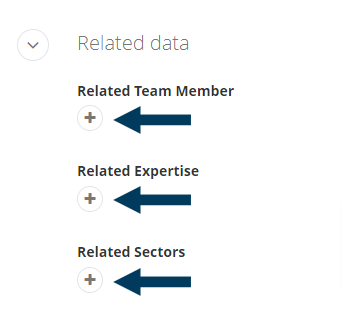
Step 4: Status the Content
Using the status bar, make the content live on your website by clicking the Publish button.
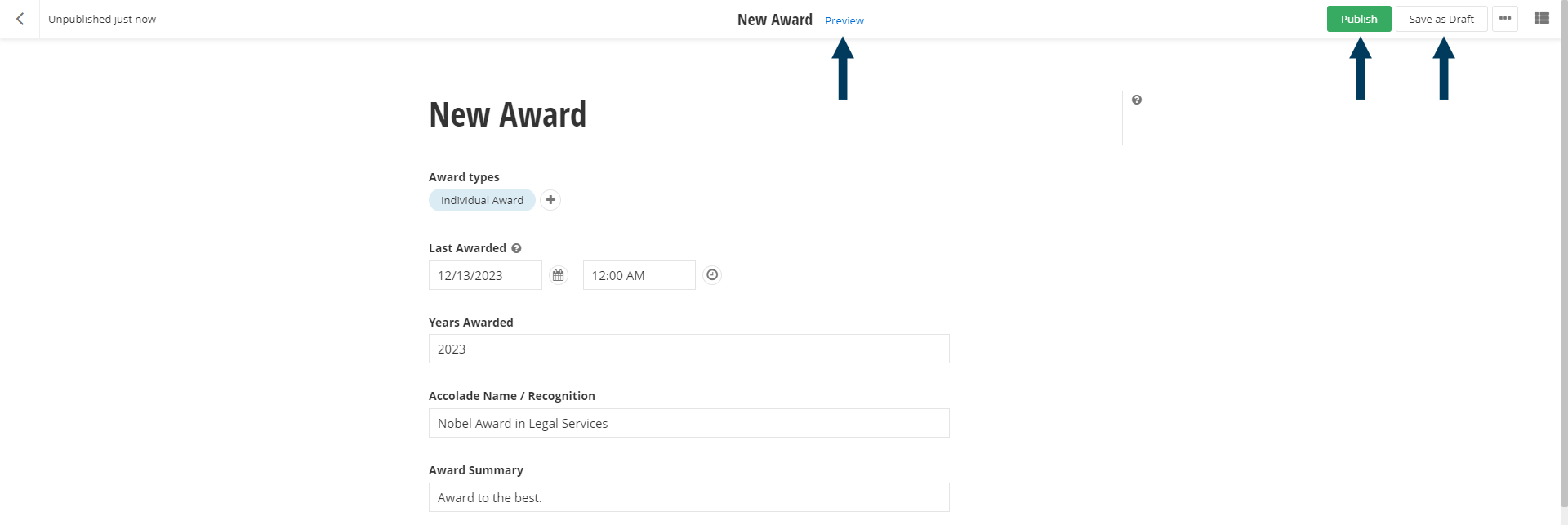
Note: To view the content prior to publishing, you can use the preview feature. This will show exactly how the content will look once published. To preview, click the Preview button (content must be statused as draft prior to previewing).
