
Interlink or Relate a Case or Rep Work
Introduction:
Videos are best viewed full screen at 1080p resolution.
Video Duration: 03:55
Step by Step Instructions:
Step 1: Go to the Content Item that you wish to add the relationship to. (Example: You want to relate an Industry to a new or existing Case Item/Rep Work Item)
From the top navigation, click on the Content drop-down menu and then Cases. Search for an existing Case Item or create a new one. This will bring you to the Create/Edit Case Item Dialog.
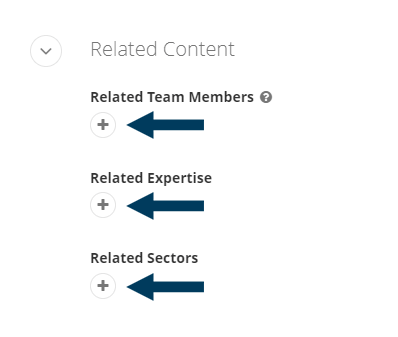
Step 2: Interlink to Team Members, Expertise or Sectors.
In the Related Content section, click the + button under Related Team Members, Expertise or Sectors to bring up the hierarchical list of that content type within the CMS. All 3 related content types function the same.
Step 3a: Select the Related Content.
If you see the Content you wish to relate to in the recent list, click on the title to select it. If you do not see the Content you can start typing the content title into the search bar or click on the 'Show all...' option.
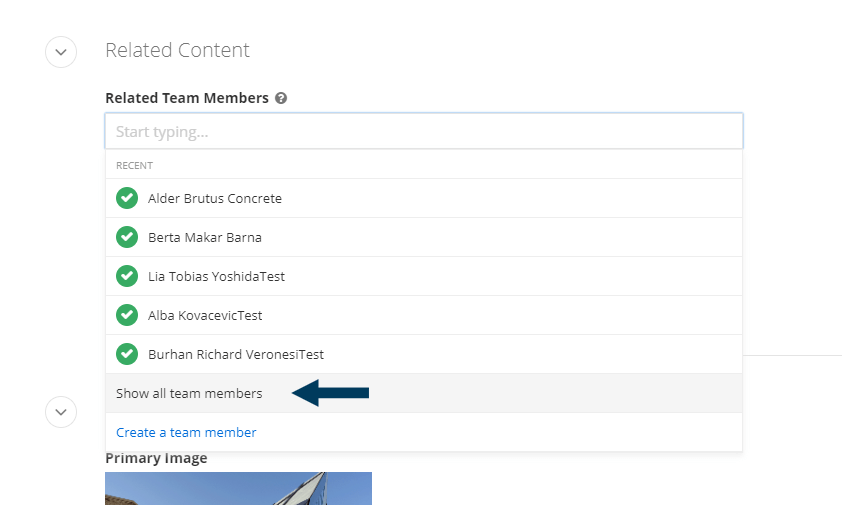
Repeat this step to associate more content. You can relate multiple items of each type.
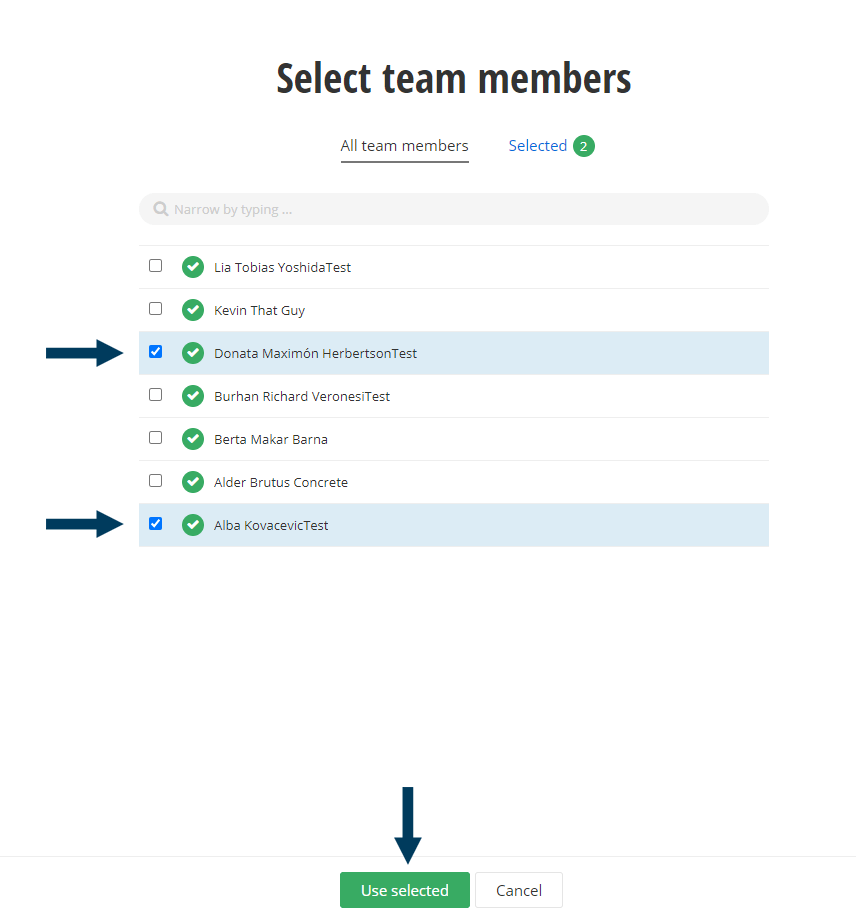
Step 3b: Show all option.
From this screen, you can select multiple team members/expertises/sectors at once by clicking on the checkboxes next to the sector names. Once all are selected, click on the Use selected button.
Step 4: Reorder the Related Content.
To change the order of the related content with your mouse, click on the content you wish to move, hold, and drag the related content to the desired location in the list. A thick black line will appear. Release your mouse button when the thick black line is in the position you wish to place the related content in your list.
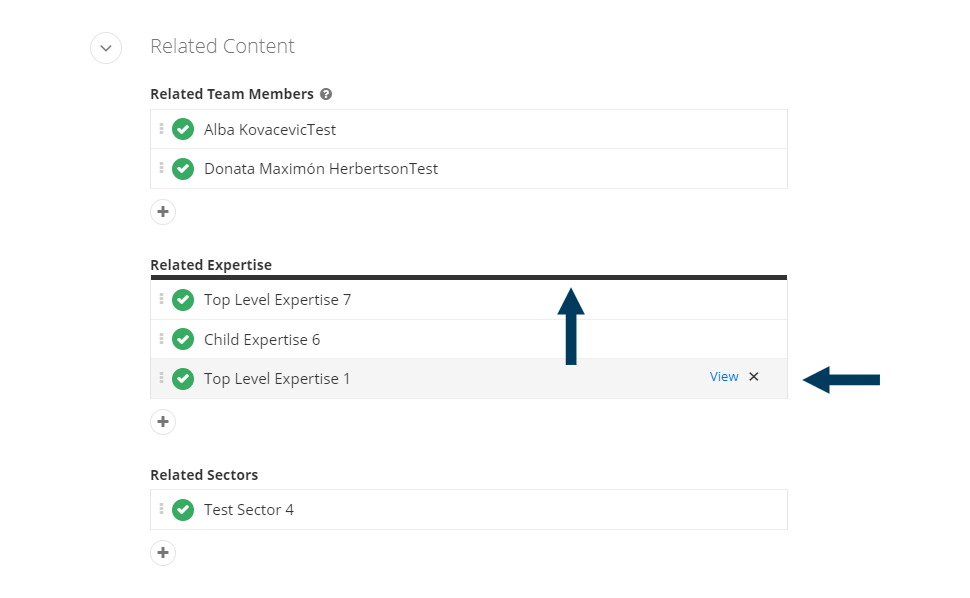
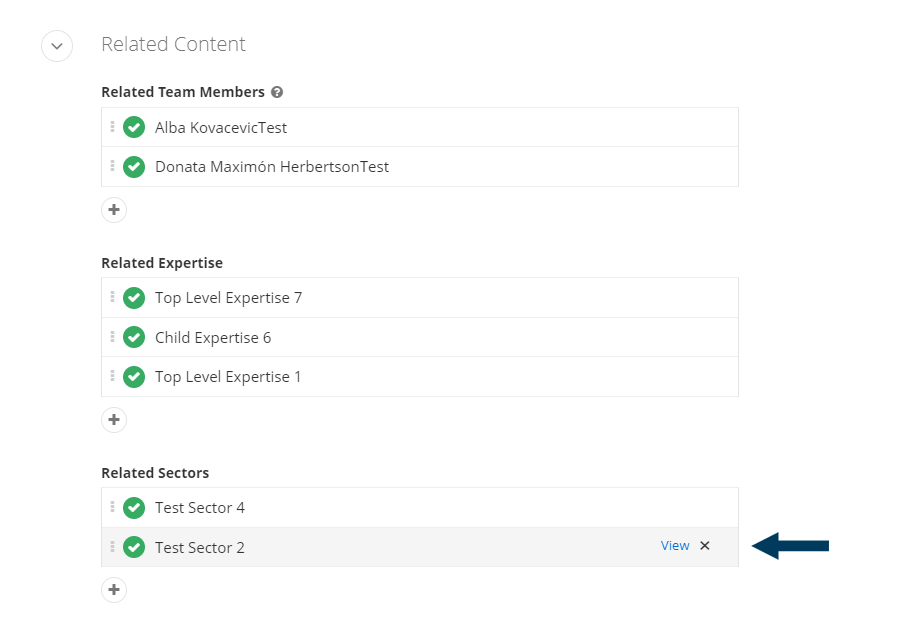
Note: To remove Related Content click the X button on the far right of of the content row. You may have to hover over the Related Content name for the X option to appear.
Step 5: Status the content.
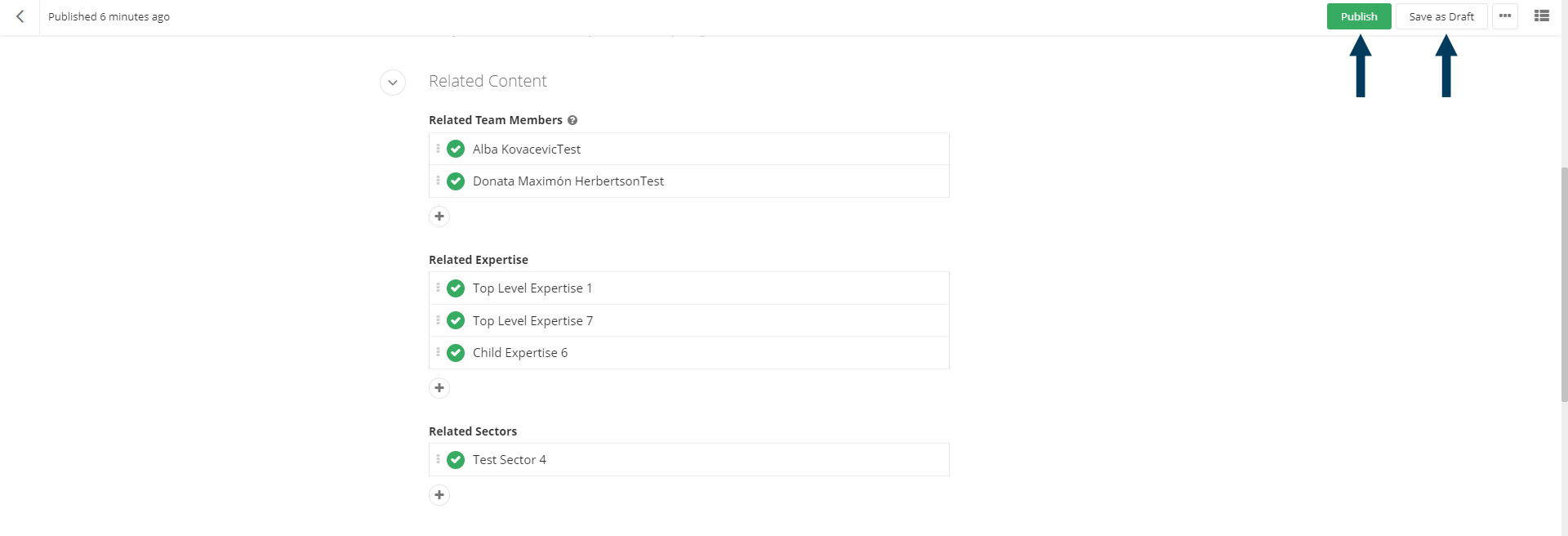
Using the status bar, click the Publish button to make the content live on your website. If you want to save your changes without making them live, click the Save as Draft button.
Note: To view the content prior to publishing, you can use the preview feature. This will show exactly how the content will look once published. To preview, click the Preview button (content must be statused as draft prior to previewing).
Related Videos
-
 04:03
04:03
