
How to Download Form Responses/Submissions Data in an Excel document
Introduction:
Videos are best viewed full screen at 1080p resolution.
Video Duration: 02:11
Step by Step Instructions:
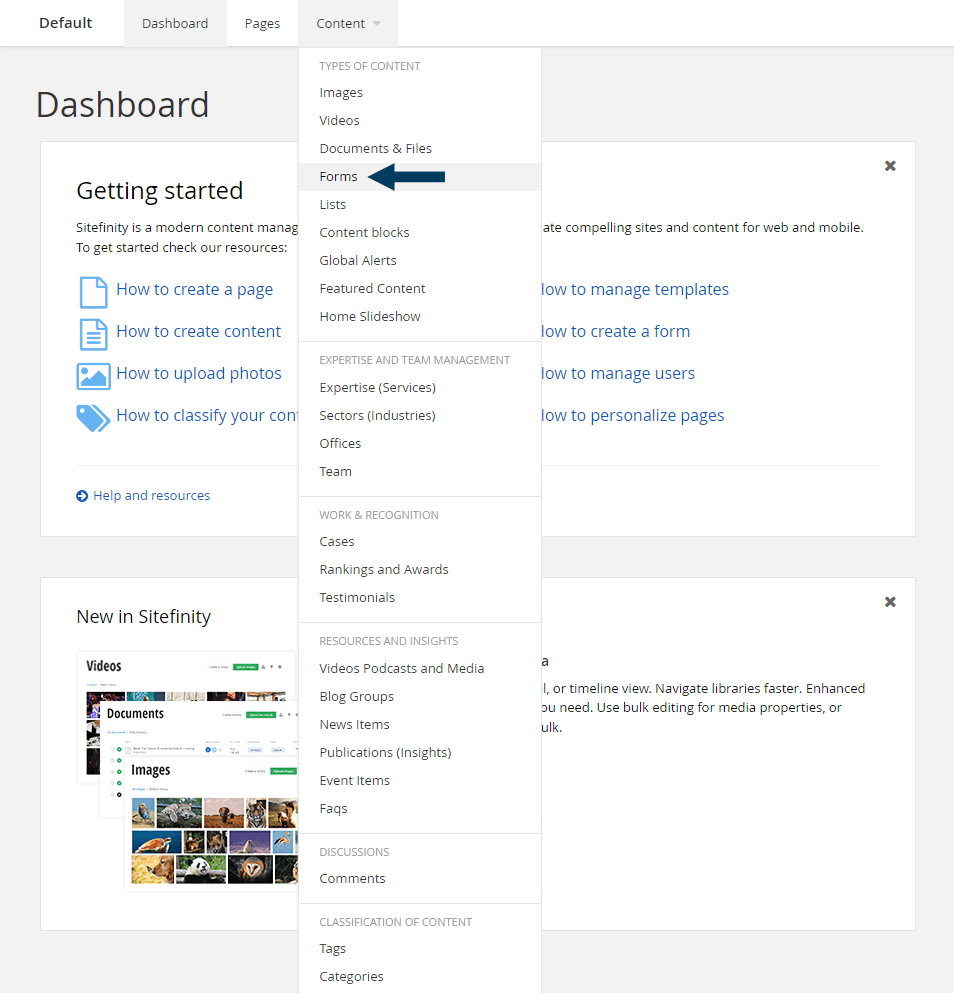
Step 1: From the top navigation, click on the Content tab and then Forms from the drop-down menu under Types of Content. This will bring up a list of all forms within your CMS.
Step 2a: Click on 'Responses'
Click on the text link 'X Responses' to bring up a list of all form submissions. In newer versions of Sitefinity, you will see the number of form submissions inside a green circle (click on this).
OLDER VERSIONS:
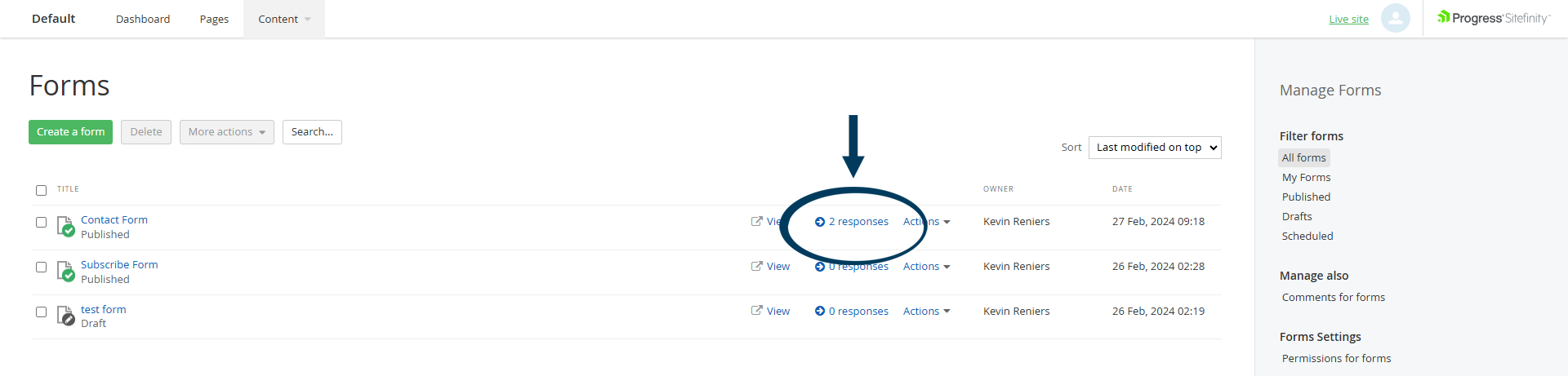
NEWER VERSIONS:

Clicking on the form name opens the form in edit mode, not the responses.
Step 2a: Select the Responses to download
You'll now see a list of all form submissions. Select the responses you wish to download by clicking on the check box at the beginning of the form response row:
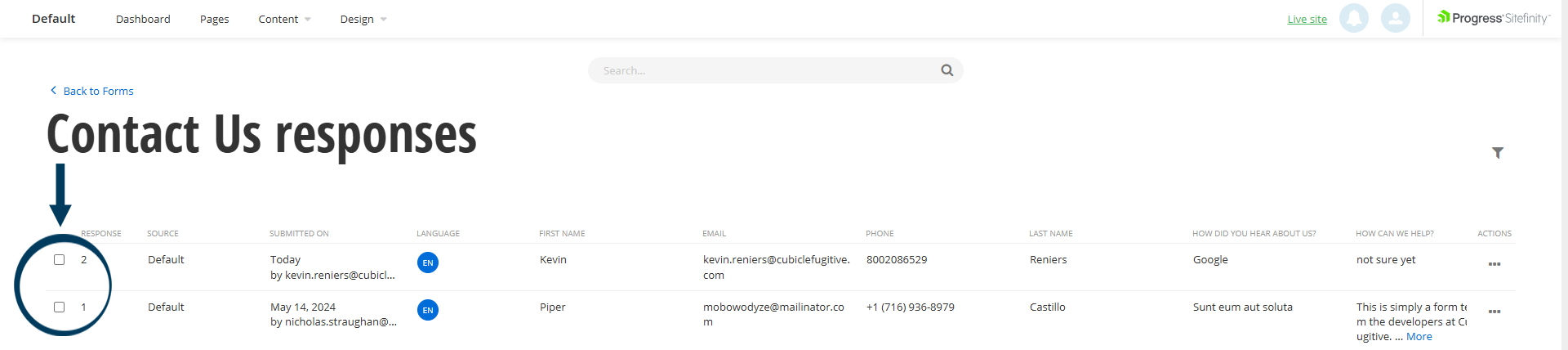
Once you have selected at least one row, an option to 'Select All' will appear. Use this to download all the responses, or continue manually selecting only the responses you specifically want to download.
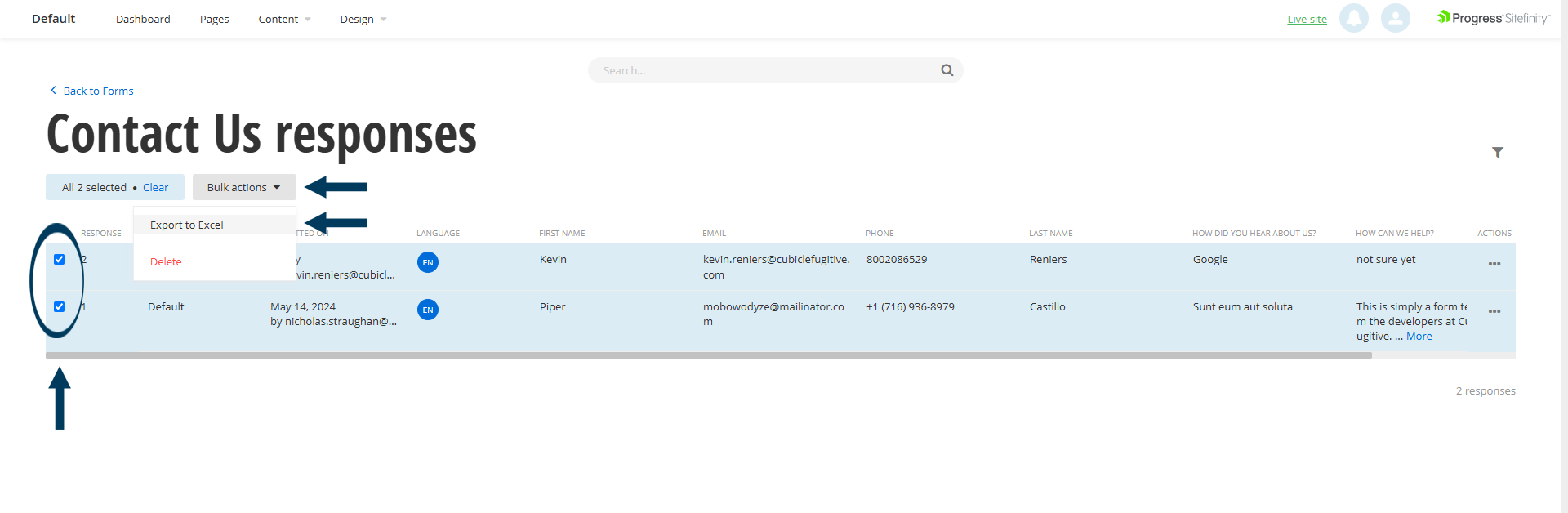
Step 2b: Downloading the form submissions
When you have finished selecting the form responses you want to download, click on the Bulk Actions button beneath the form title (above the response list). From the menu that appears, select Expert to Excel
Step 3: Retrieve the Excel file from your downloads folder
Find the downloaded Excel file in your default downloads folder.
Related Videos
-
 07:05
07:05 -
 02:29
02:29

