
Edit an Expertise / Service / Practice Area
Introduction:
Videos are best viewed full screen at 1080p resolution.
Depending on what version of the CMS your website uses, the Content drop down may display Services instead of Practice Areas.
Video Duration: 02:15
Step by Step Instructions:
Step 1: From the top navigation, click on the Content drop-down and then Expertise (Services).
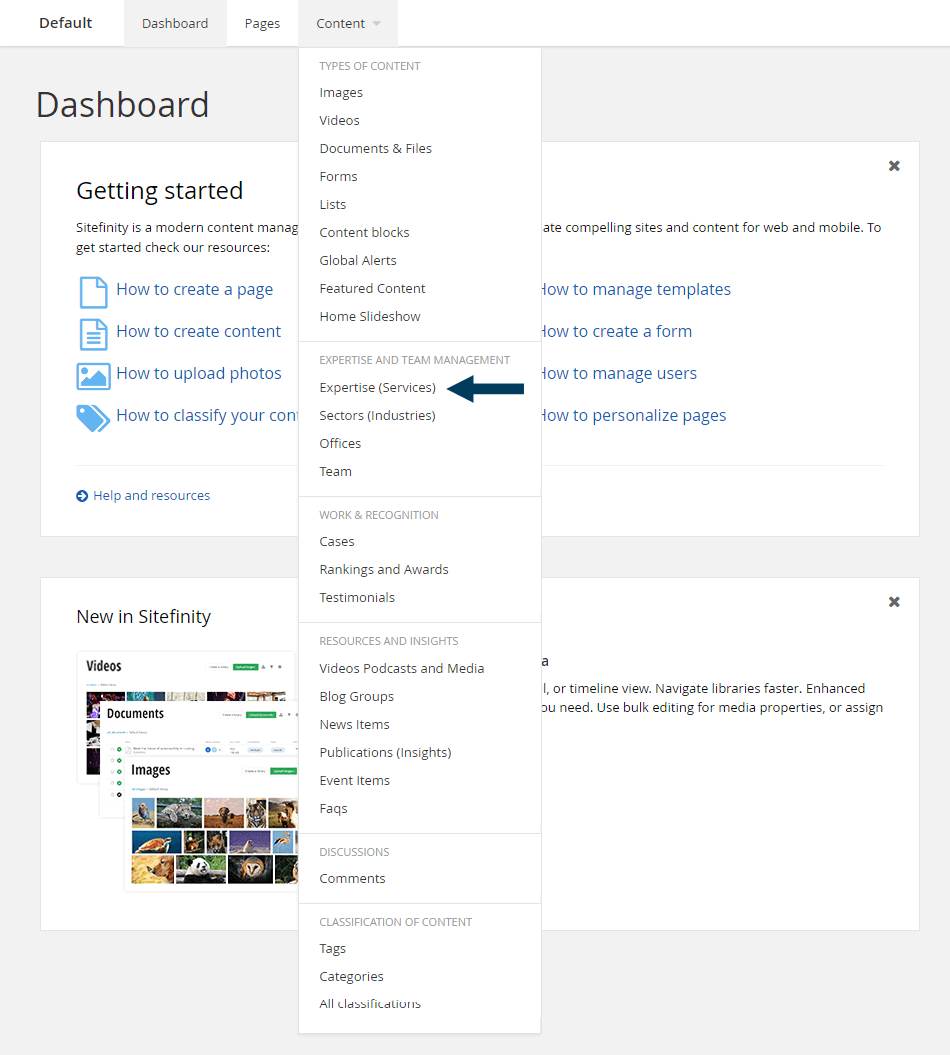
This will bring up the listing page that shows all Practice Areas/Services.
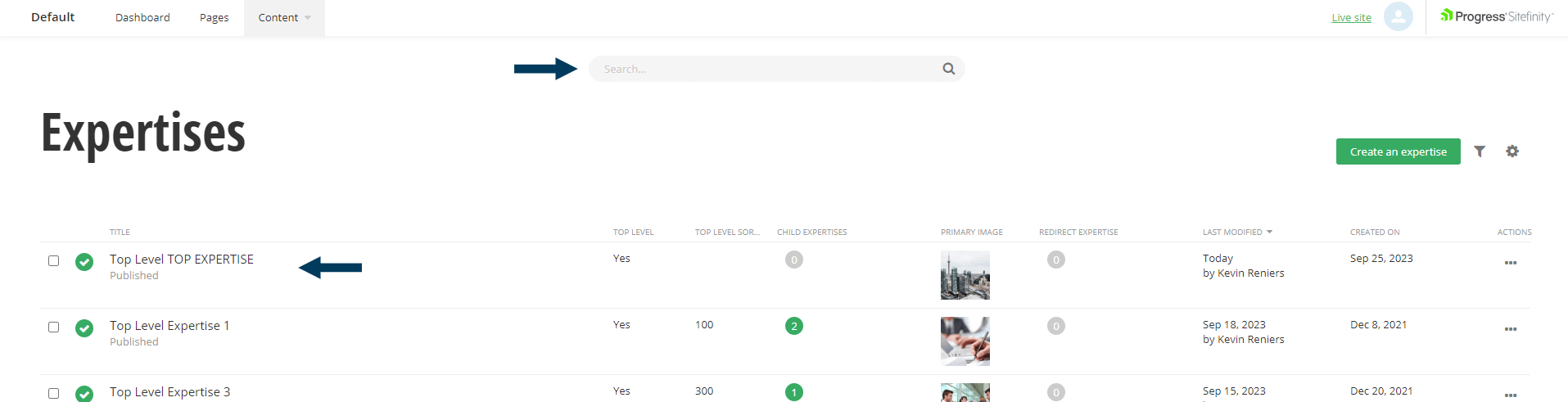
Step 2: Search for the Expertise you wish to edit, or select from the list of all Services.
To search, type the partial name of the Expertise into the search bar and then hit your enter key. The newly filtered list of Practice Areas will appear showing those matching your search criteria. To edit the Practice Area, click on the Title. This will bring it into Edit mode and populate the Edit dialog with the existing field's content.
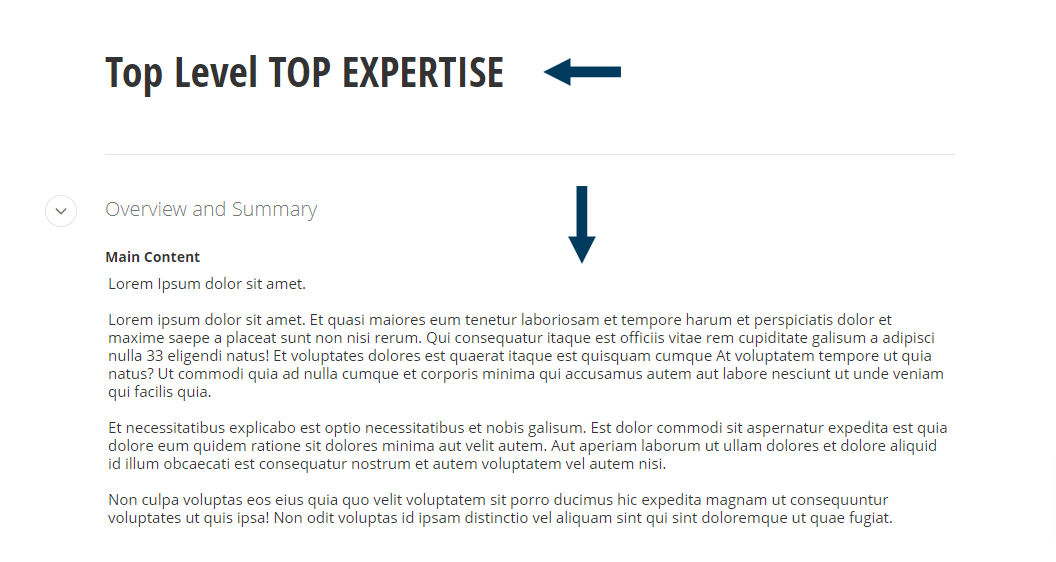
Step 3. Edit existing fields or fill out additional ones.
Step 4: Status the Content.
Using the status bar make the content live on your website by clicking the Publish button.
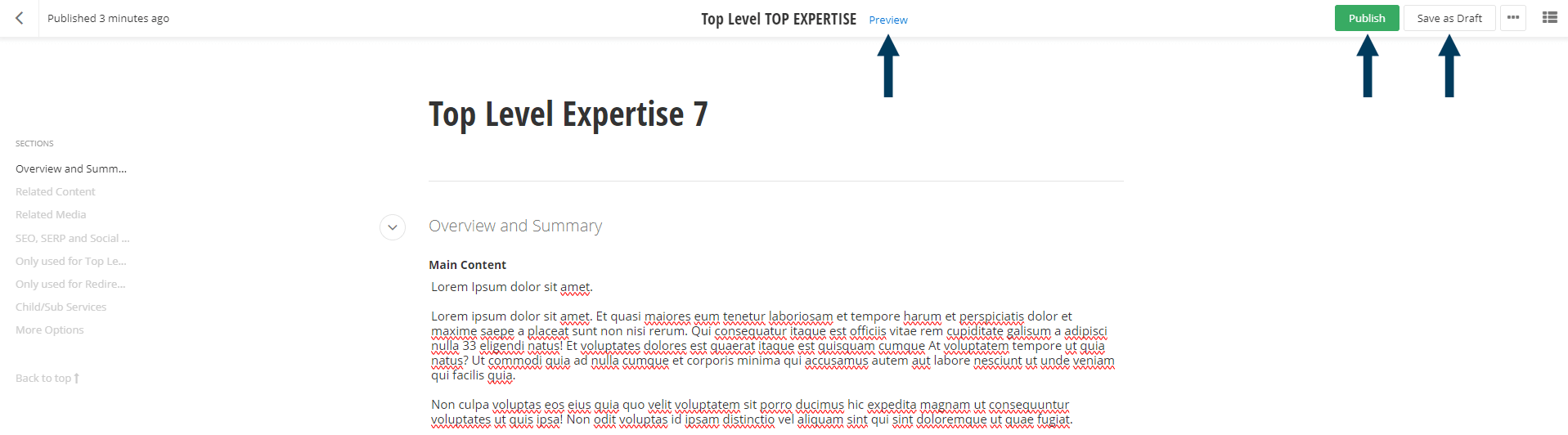
Note: To view the content prior to publishing you can use the preview feature. This will show exactly how the content will look once published. To preview click the Preview button (content must be statused as draft prior to previewing).


