
How To Use the On-Page Edit Feature
Introduction:
Videos are best viewed full screen at 1080p resolution.
Video Duration: 01:55
Step by Step Instructions:
Step 1: While browsing your website, you notice you need to edit some content. For this example, we'll edit the phone number on a team bio page.

Step 2a: Open a new browser tab and login to the Sitefinity CMS
In a new browser tab, log into the Sitefinity CMS.
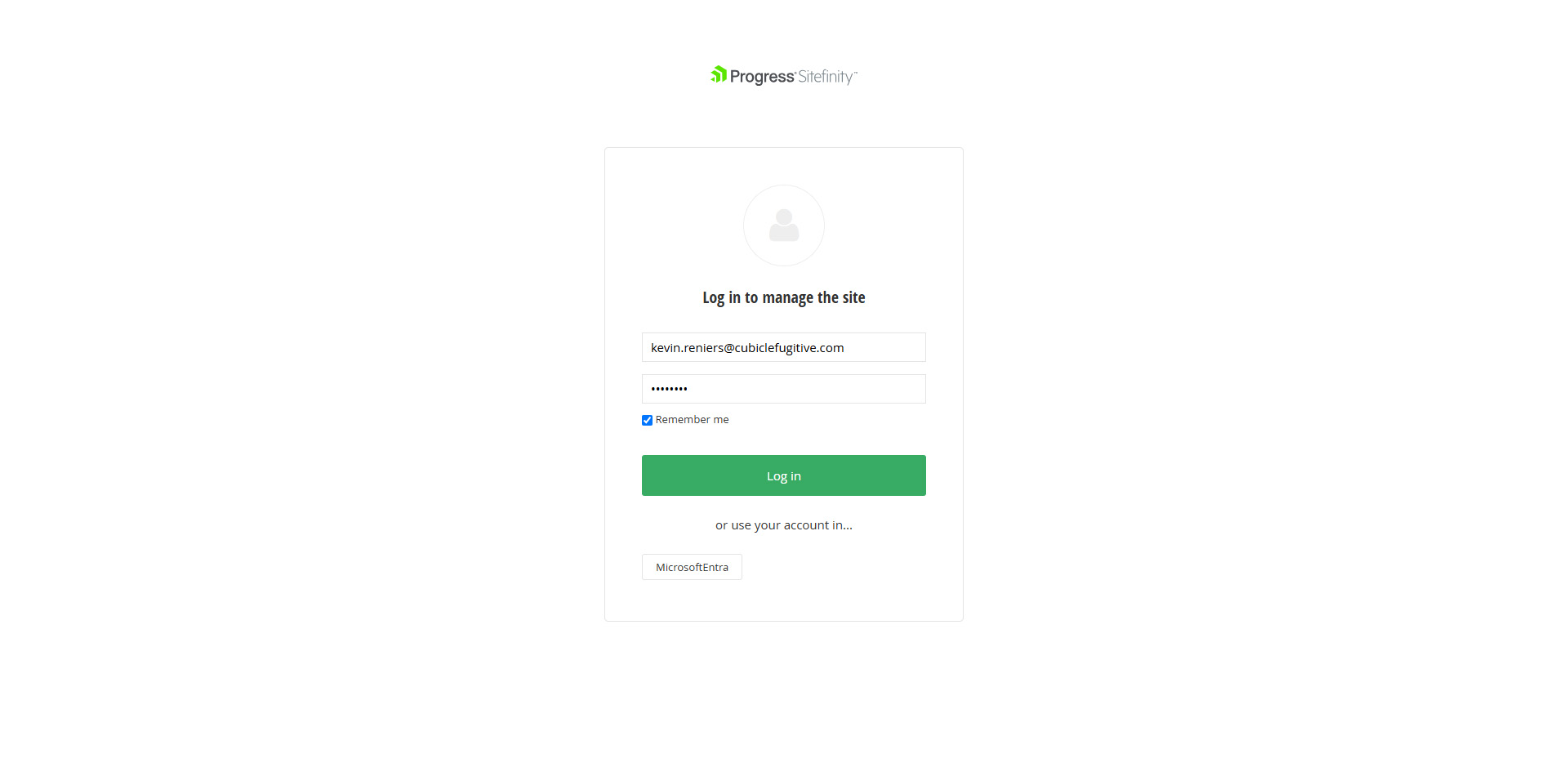
Step 2b: Refresh the Page you want to edit. Click on the Edit button
Once you have logged into the Sitefinity CMS, return to your original browser tab and refresh the page. An Edit button should appear near the top right corner (placement could vary on your website).
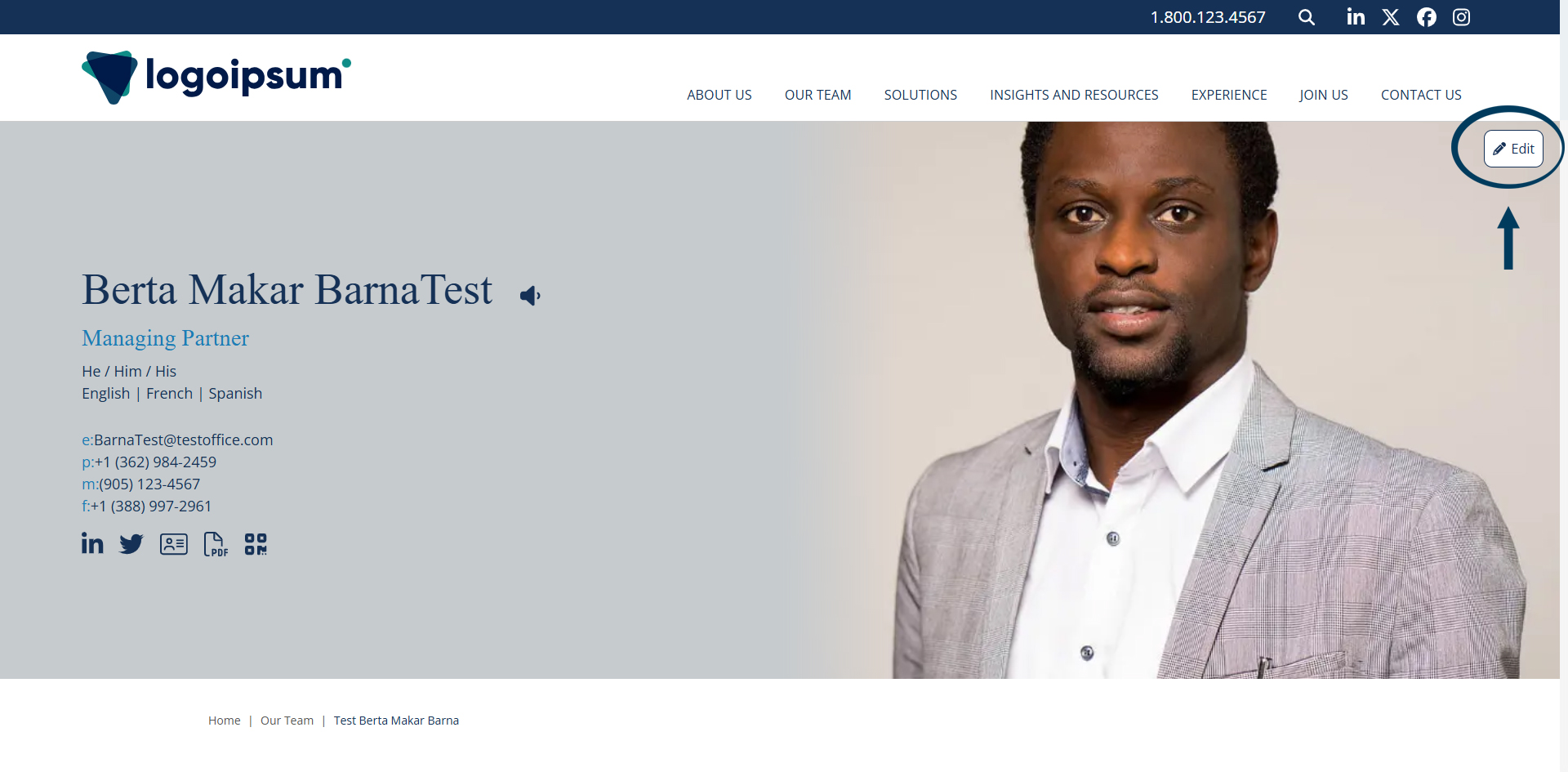
If you do not see the Edit button, perform a hard refresh by pressing CTRL+SHIFT+R to refresh the page, clearing your cache.
Step 3: Edit the Content
Edit the content as necessary.
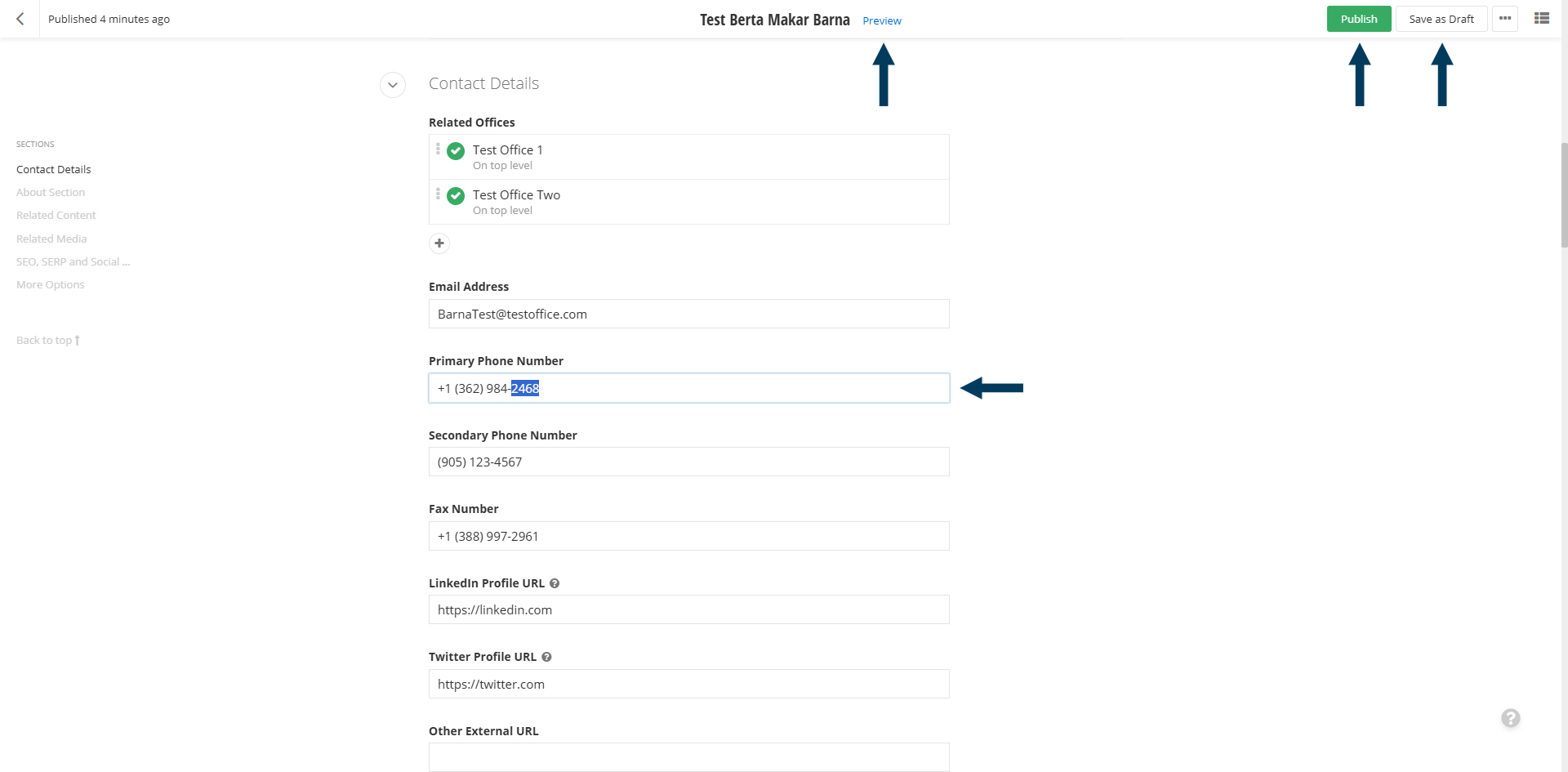
Step 4: Status the Page.
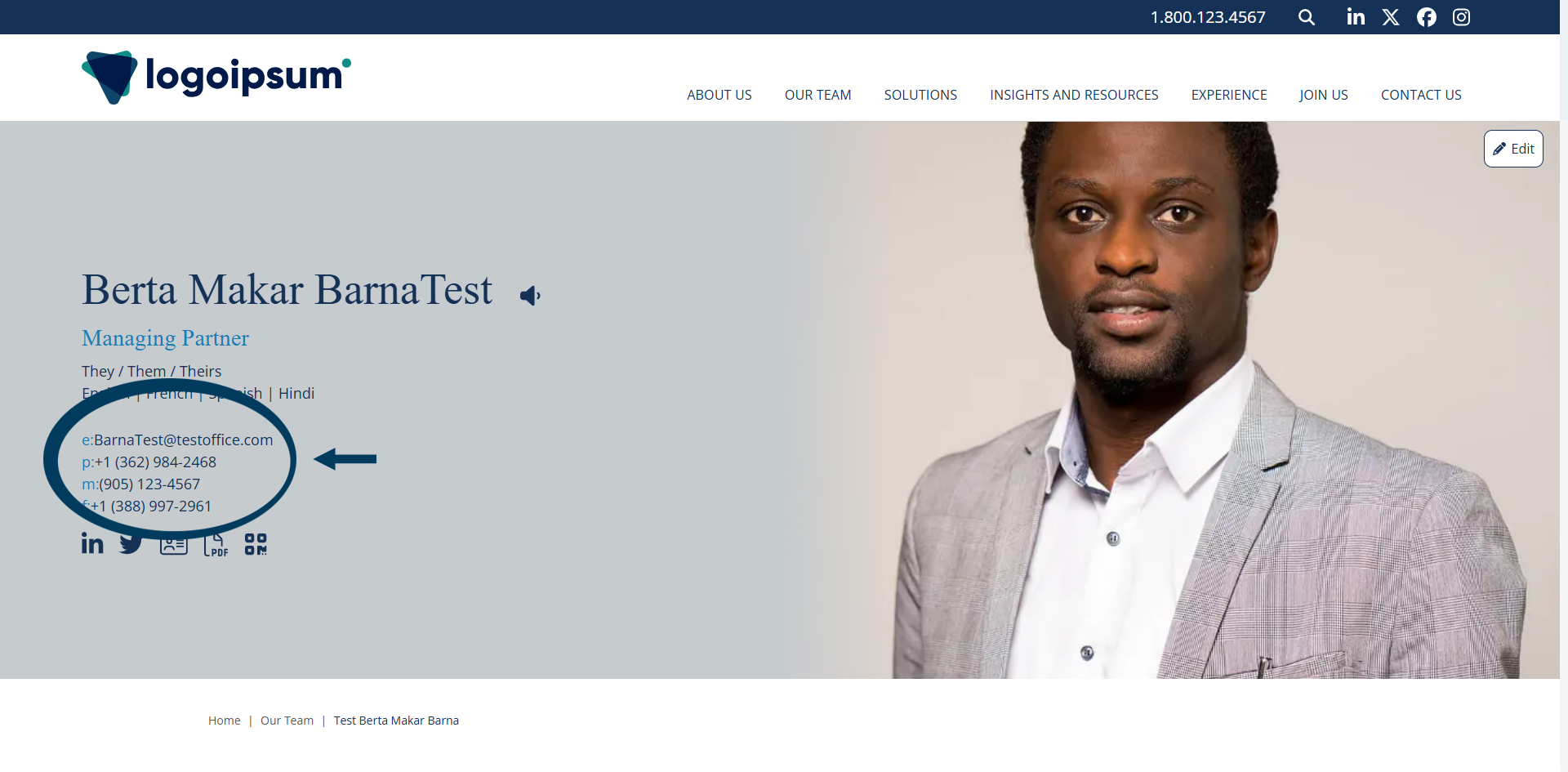
Using the status bar, click the Publish button to make the new content live on your website. Then, return to the browser tab with the original page/content open. Refresh the page and confirm your edits are live.
Note: To view the page prior to publishing, you can use the preview feature. This will show exactly how the page will look once published. To preview, click the Preview button (Pages must be statused as draft prior to previewing).
Related Videos
-
 03:26
03:26 -
 03:02
03:02 -
 04:53
04:53 -
 04:03
04:03 -
 02:57
02:57


